
Your Kindle saves every highlight and note in a single file called My Clippings.txt, in its documents folder. Plug the Kindle into your iPhone or iPad, pick that file in Excerpta, and each highlight lands on its own book with its note, page, and the day you made it. From there, Export Library writes one Markdown file per book, ready to drop into Obsidian.
Guide
How to Export Your Kindle Highlights
Everything you've highlighted on your Kindle is sitting in one text file. Here's how to turn it into a library, then into one Markdown file per book.
On your Kindle
My Clippings.txtEvery highlight and note, in Kindle › documents
Frankenstein (Mary Shelley)
- Your Highlight on page 52 | Location 790-791 | Added on Sunday, September 14, 2026

Beware; for I am fearless, and therefore powerful.
==========
Frankenstein (Mary Shelley)
- Your Note on page 52 | Location 791 | Added on Sunday, September 14, 2026

The creature, done asking.
==========
In Excerpta
Beware; for I am fearless, and therefore powerful.
The creature, done asking.
Exported
---
title: "Frankenstein"
authors: ["Mary Shelley"]
---

# Frankenstein

## Unchaptered

### Page 52

> Beware; for I am fearless, and therefore powerful.

*Captured: 2026-09-14 · Kindle loc 790-791*

**Note:** The creature, done asking.
From Kindle to Excerpta
-
Plug In Your Kindle
Connect it to your iPhone or iPad with a USB cable. It shows up in Files like any other drive.
- Kindle
- documents
- My Clippings.txt
-
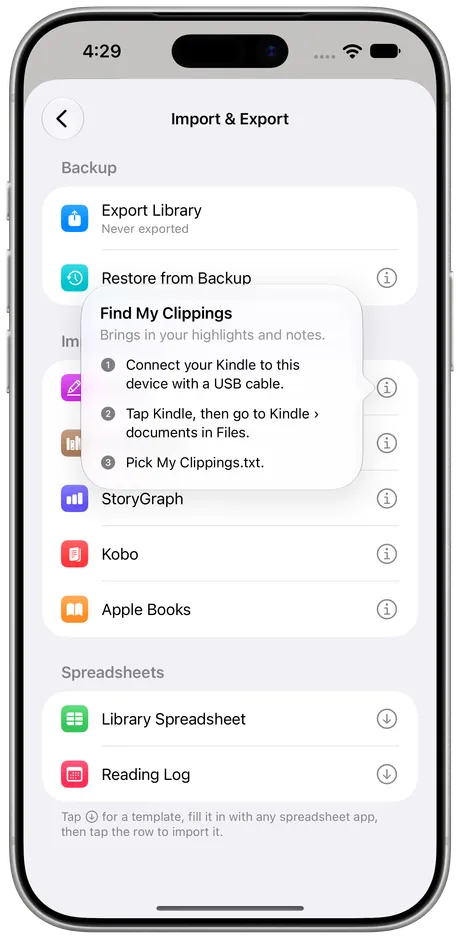
Pick My Clippings.txt
In Excerpta, go to Settings → Import & Export and tap Kindle. Open Kindle › documents and pick My Clippings.txt.
-
Watch Your Books Fill In
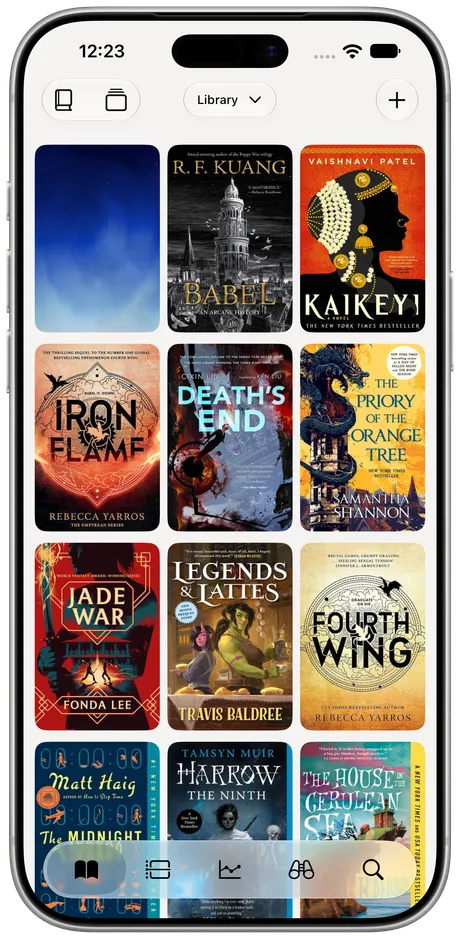
Each book is matched to your library, or added with its cover, and its highlights land on its timeline.


What Comes Over
Every Highlight
With the page and location your Kindle saved.
Your Notes
Attached to the highlight they were written on.
When You Made It
Each quote lands on the day you highlighted it.
The Books
Matched to your library, or added with their covers.
Bookmarks stay behind. When you stretched a highlight after making it, your Kindle saved both versions, and only the longer one comes in.
No Cable Handy?
Plug the Kindle into any computer instead, copy My Clippings.txt from its documents folder to iCloud Drive, and pick it from there.
Run It Again Whenever You Like
My Clippings.txt keeps everything you've ever highlighted on that Kindle, so just import the whole file again. Highlights you already have are skipped, and only the new ones come in.
Then Into Obsidian
Settings → Import & Export → Export Library makes a zip with one Markdown file per book, each with its highlights, notes, and pages. Unzip it into your Obsidian vault, or open it in Bear or Notes. Export stays free whether or not you subscribe.
Other Ways to Do It
- Amazon's notebook. read.amazon.com/notebook lists your highlights book by book in a browser. Getting them out is copy and paste.
- A converter. Obsidian plugins and web tools turn My Clippings.txt straight into Markdown. Quick, but they stop at the file.
Excerpta does the converting too, then keeps each highlight with its book, its note, and everything you read after it.
Questions
Where is My Clippings.txt?
On the Kindle itself, in the documents folder. It holds every highlight and note made on that Kindle.
Are highlights from the Kindle app included?
No. My Clippings.txt only has what you highlighted on the Kindle. Highlights from the Kindle app on your phone stay in Amazon's notebook.
What about books I added myself?
They're in My Clippings.txt too, so their highlights come over like any other.
Do I need a cable?
It's the easiest way. You can also copy the file to iCloud Drive from any computer and pick it from there.
What happens if I import twice?
Highlights you already have are skipped, so only the new ones come in.
Where can I get Excerpta?
On the App Store, for iPhone and iPad.
Your next favorite quote is waiting to be remembered.
For iPhone and iPad.
Download on the App Store