

Goodreads can export your whole library as a CSV file from its website. Import that file in Excerpta and every book comes over with its reading status, your rating and review, and when you started and finished. Each book is looked up for its cover and details on the way in. StoryGraph's export works the same way, quarter stars included.
Guide
Bring Your Goodreads Library Along
Every book you've read, are reading, or want to read, with your ratings, reviews, and dates. StoryGraph works the same way.
From Goodreads
goodreads_library_export.csvYour whole library, in your downloads
| Title | My Rating | Exclusive Shelf | Date Read |
|---|---|---|---|
| Pride and Prejudice | 5 | read | 2026/08/30 |
| Frankenstein | 4 | read | 2026/07/12 |
| Middlemarch | 0 | currently-reading | |
| Moby-Dick | 0 | to-read |
In Excerpta
- Pride and PrejudiceJane AustenRead
- FrankensteinMary ShelleyRead
- MiddlemarchGeorge EliotReading
- Moby-DickHerman MelvilleWant to Read
From Goodreads to Excerpta
-
Export Your Library
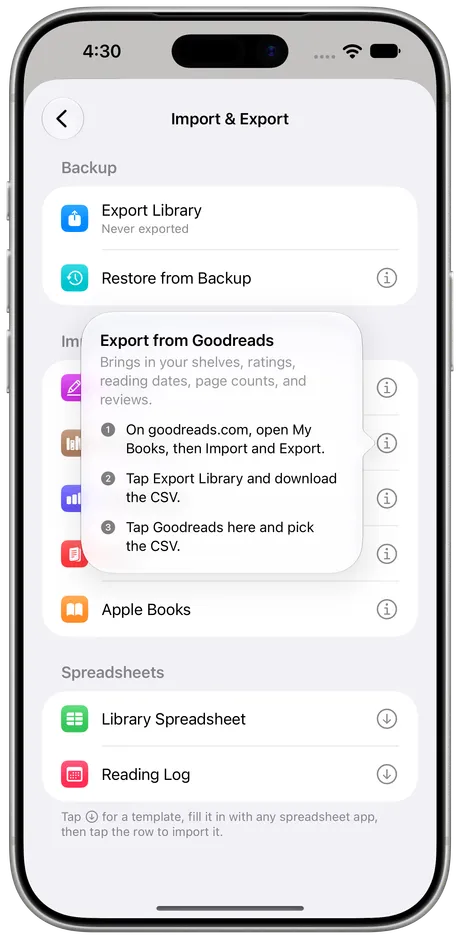
On goodreads.com, open My Books, then Import and Export, and tap Export Library. It's only on the website, not in the Goodreads app.
Export Librarygoodreads_library_export.csvYour whole library, in your downloads -
Pick It in Excerpta
Go to Settings → Import & Export, tap Goodreads, and pick the CSV.
-
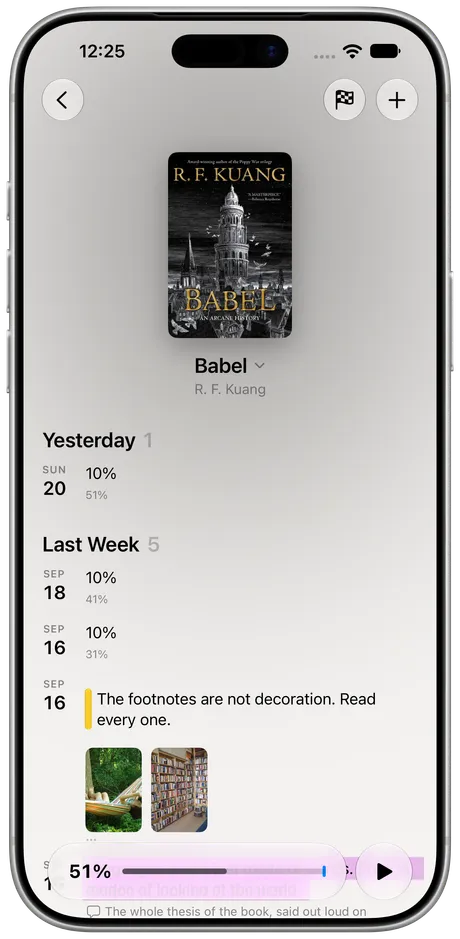
Watch Your Shelves Fill In
Each book lands with its cover, its status, your rating and review, and its dates.


What Comes Over
Reading Status
Read, reading, and want to read, plus StoryGraph's did-not-finish and paused.
Your Ratings
Whole stars from Goodreads, quarter stars from StoryGraph.
Your Reviews
Everything you wrote about a book comes with it.
When You Read It
When you added, started, and finished each book.
Custom shelves, read counts, and private notes stay behind for now, and so do StoryGraph's moods, pace, and tags.
Coming From StoryGraph?
On thestorygraph.com, open Manage Account. Under Manage Your Data, tap Export StoryGraph Library and download the CSV. Then tap StoryGraph in Excerpta's Import & Export and pick it. Everything above applies, and your quarter-star ratings come over exactly as you gave them.
Nothing You've Added Gets Overwritten
Already have some of these books in Excerpta? The import only fills in what's missing, and it only ever moves a book forward (want to read, then reading, then read), never back. So you can export again later and import again without undoing anything.
What About Your Highlights?
Goodreads' export doesn't include your Kindle highlights. Bring those in from the Kindle itself with the Kindle guide, and they'll land on the same books.
Questions
Can I export from the Goodreads app?
No, only from the website. On your phone, open goodreads.com in a browser and ask for the desktop site.
Do my shelves come over?
Read, currently reading, and want to read do. Custom shelves don't yet, so you'd set those up again as Excerpta shelves.
Will it overwrite books I've already added?
No. It only fills in what's missing, and it never moves a book backward.
Do half and quarter stars survive?
StoryGraph's quarter stars come over as they are. Goodreads only exports whole stars.
Can I keep using Goodreads?
Yes. Nothing changes on Goodreads. Export again whenever you like and import it; books you already have only fill in what's new.
Where can I get Excerpta?
On the App Store, for iPhone and iPad.
Your next favorite quote is waiting to be remembered.
For iPhone and iPad.
Download on the App Store